
Home and daily target
Today's sales, menu shortcuts, and cards you can arrange yourself.
Available on Starter, Growth, Enterprise
- 1
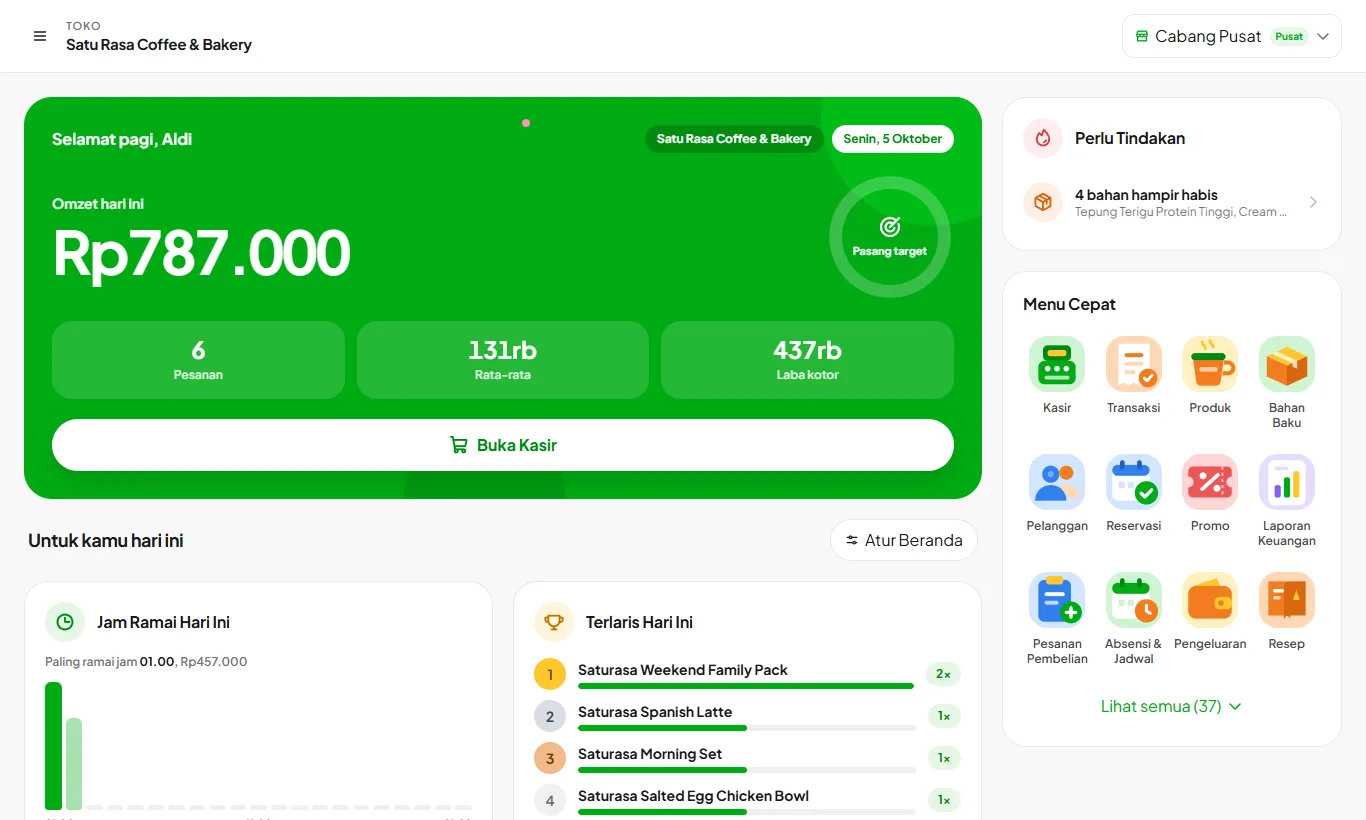
The Today card
The green card at the top shows today's sales, a comparison with yesterday at the same hour, order count, average per order, and gross profit for owners and managers. Open Cashier takes you straight to the cashier screen.
- 2
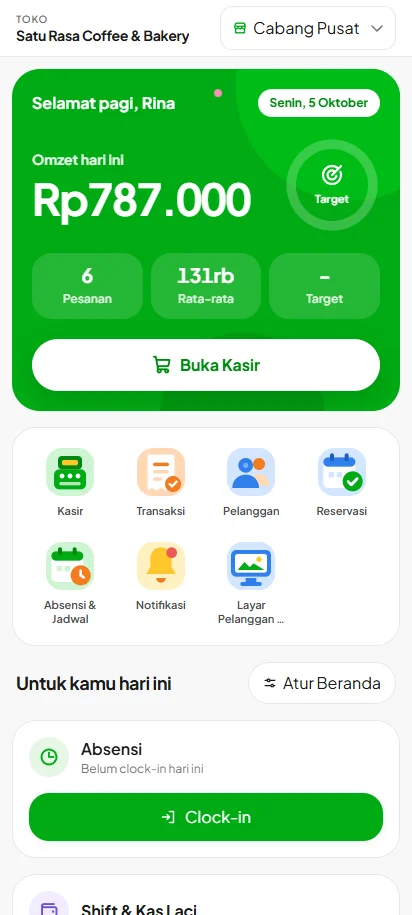
Set a daily target
Owners or managers tap the Target ring and enter a daily sales target. The ring fills as sales come in, and cashiers see the progress too. Clear the value to turn the target off.
- 3
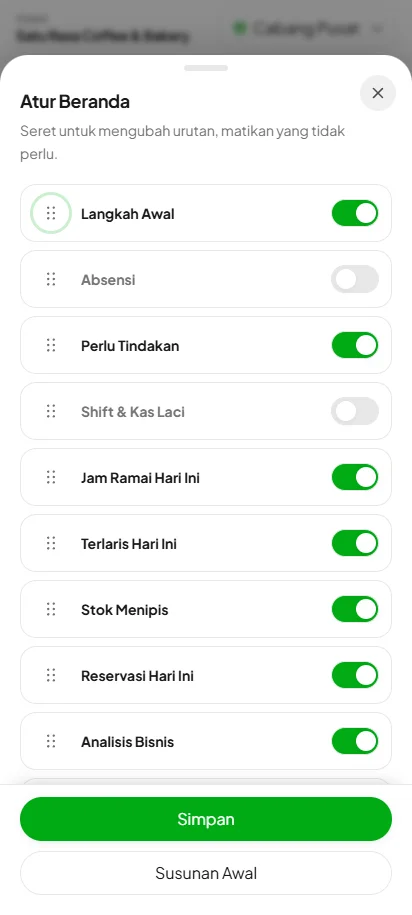
Arrange the cards your way
Tap Arrange Home. Drag cards to reorder them and switch off the ones you don't use, such as Busy Hours, Best Sellers, Today's Payment Methods, Inventory, Business Health, or Shift & Cash Drawer. Layouts are saved per account, so each staff member gets their own Home. Default Layout restores the role-based order for owners, managers, or cashiers.
The Needs Attention card gathers waiting QR orders, new reservations, low ingredients, and subscriptions about to end in one place. On desktop, it stays pinned in the right panel next to Quick Menu.