Notification bell
Store alerts and news from Kelola, in the top right corner.
Available on Starter, Growth, Enterprise
- 1
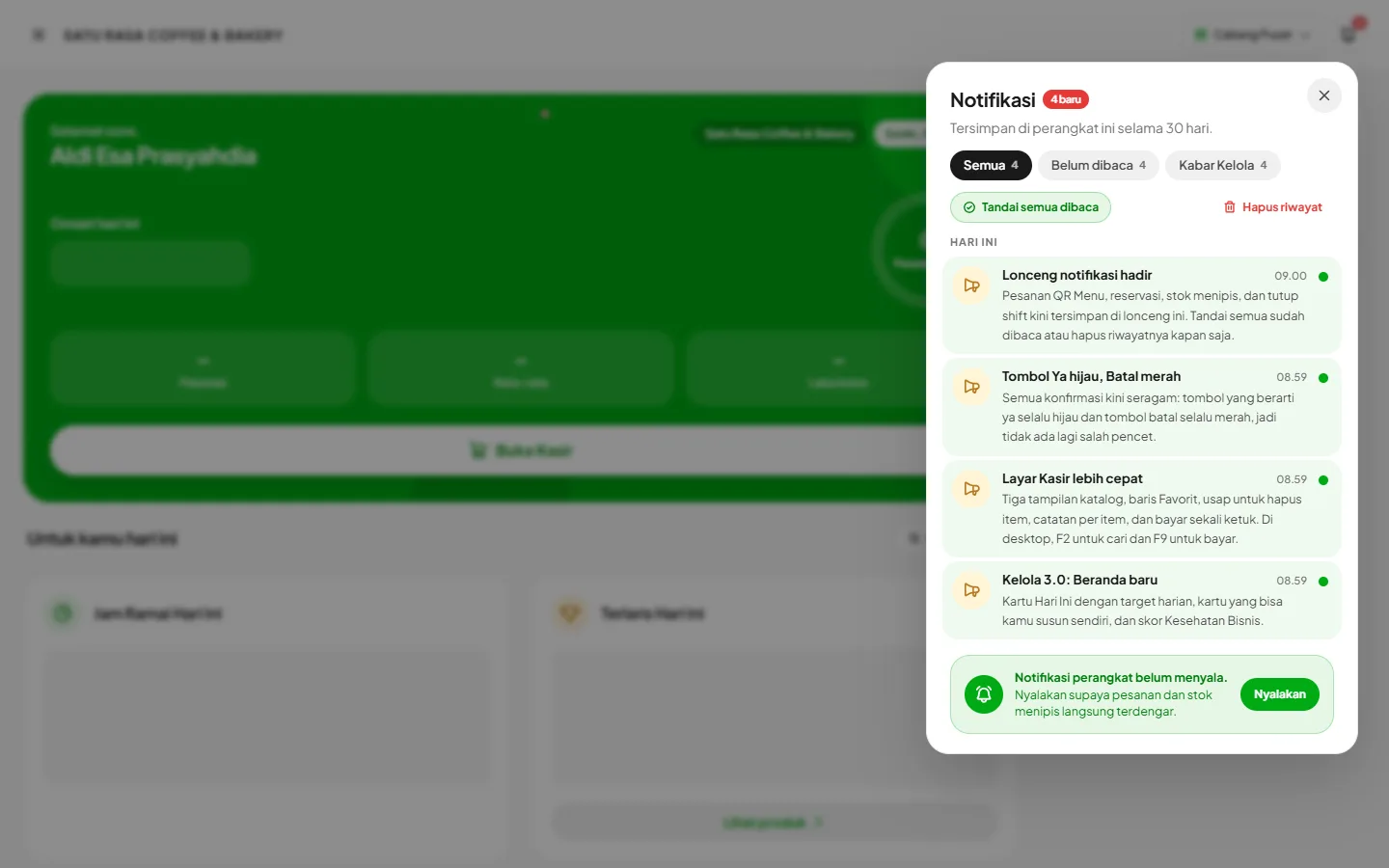
Open the bell
The bell sits in the top right corner of every page. The red number shows unread notifications, and the bell wiggles when something new arrives. It holds QR Menu orders, online reservations, critical stock, shift closings, cash differences, shift reminders, shift swaps, and Kelola News about app updates. Each type has its own icon and color, so you can tell them apart at a glance.
- 2
Read, filter, and clear
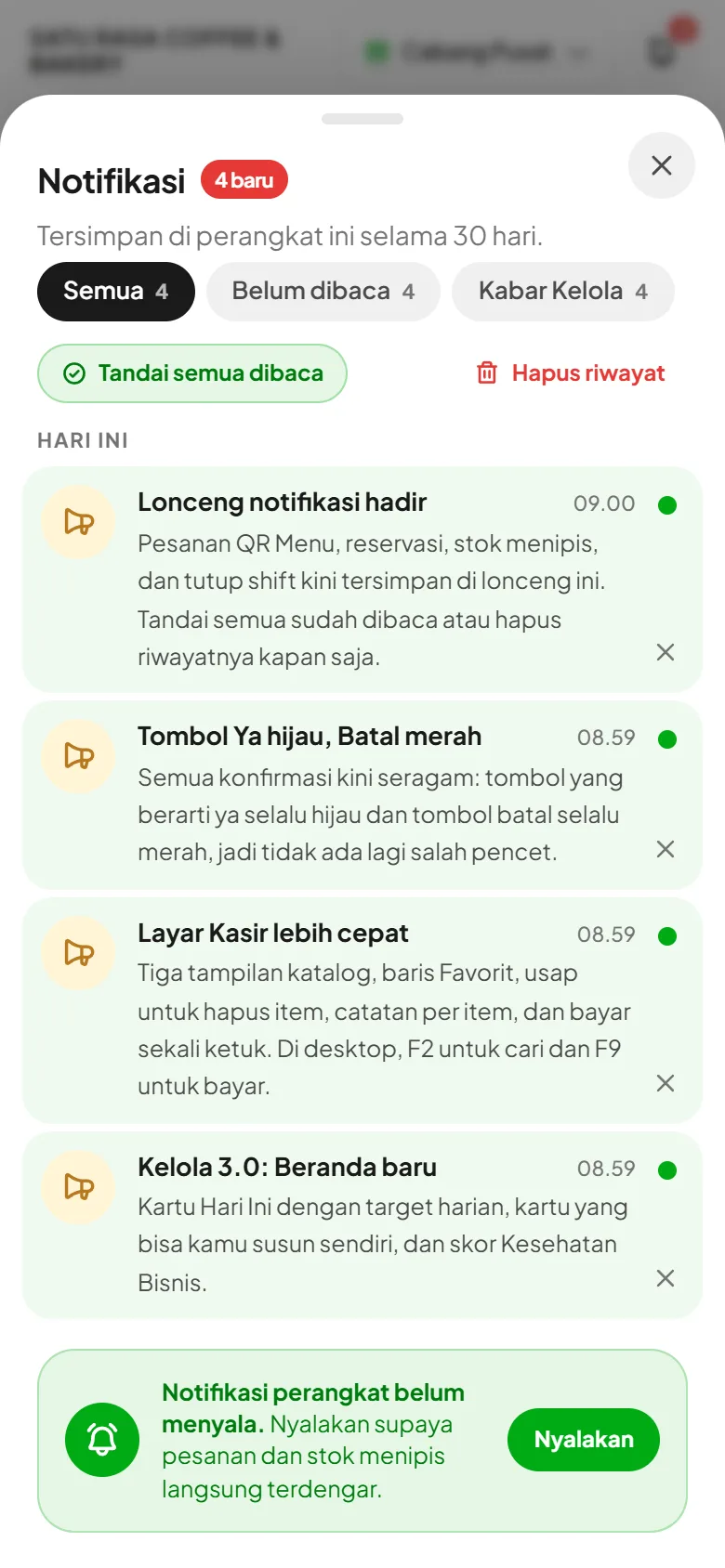
Tap a notification to mark it read and jump to its page, for example a QR order opens the cashier screen. Filter by All, Unread, or Kelola News. Mark all as read clears every green dot at once, the cross removes one notification, and Clear history empties the list after you confirm.
- 3
Turn on device notifications
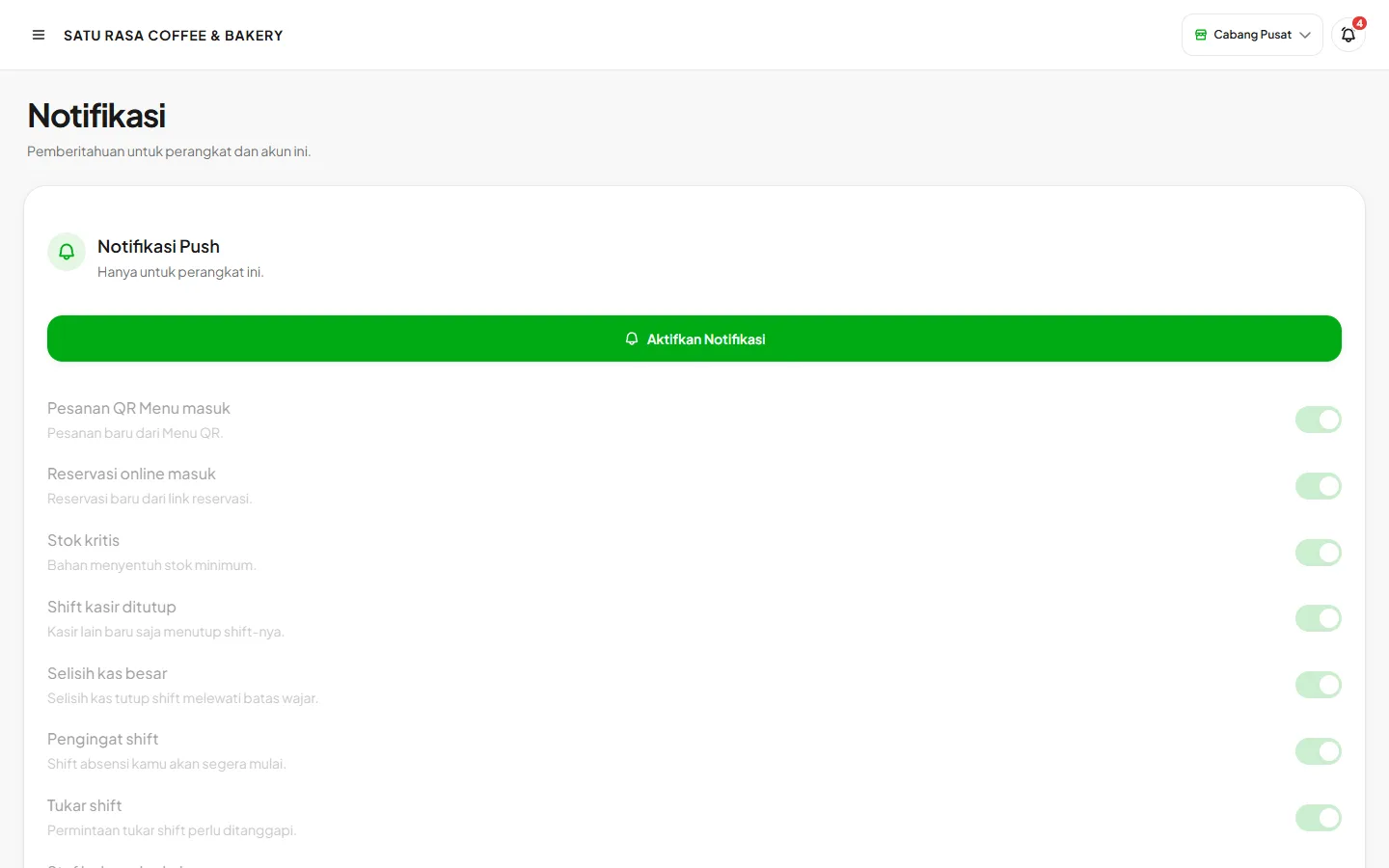
To get alerts even when the app is closed, open Settings, Notifications, tap Turn On Notifications, and allow it in the browser. Do this on every device that should receive them, then pick the alert types you want, including Kelola News for app update news. If permission is still off, the bell panel shows a Turn on shortcut.
Notification history is kept on each device for 30 days, not on a server. Clearing it on your phone does not clear it on your laptop.