
Customer Display
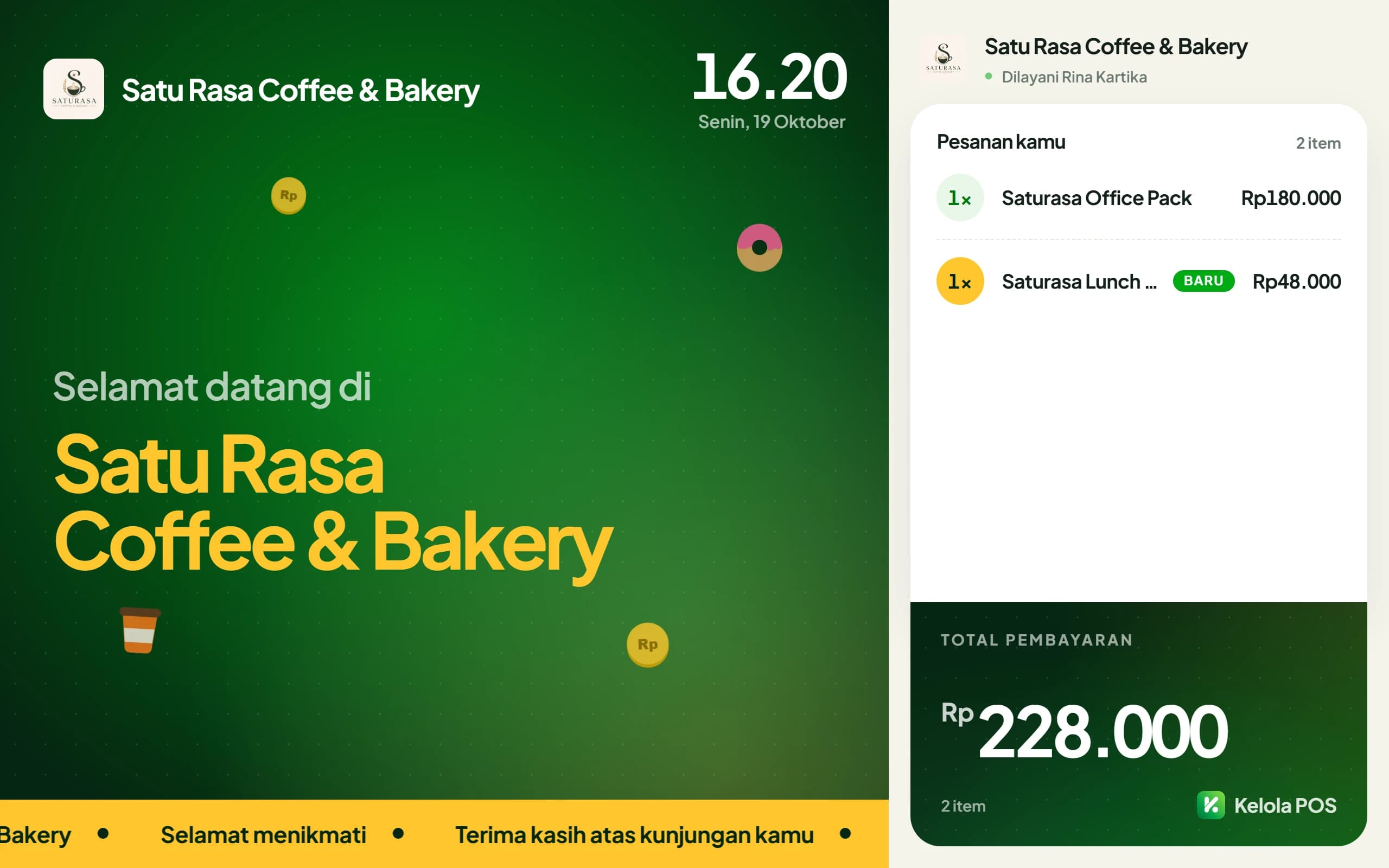
A second screen facing the customer. It shows order details while the transaction is in progress, and runs your promotions and visual material outside busy hours.
What you need
- An active Growth or Enterprise plan
- A TV, tablet, or spare phone with a browser, facing the customer
- Promo images up to 3 MB, or videos up to 60 seconds
Switching it on
Prepare promo images and videos
Open Settings, then Customer & Kitchen Screens. Choose Landscape (1920 x 1080) or Portrait (1080 x 1920) and upload images. Videos can be uploaded directly: Kelola shrinks and compresses them in the browser, without sound, before sending. Up to 12 slides, reorderable, and each slide can be hidden temporarily.
Pair the screen
Follow the steps below. Customer Screen under Customer & Kitchen Screens turns on by itself once the first screen is paired.
Running promos appear automatically from your promo data. You do not need to design an image for them.
Setting it up on a TV or tablet
The display device never signs in. It connects with a code, so a TV facing the dining room never holds access to the till, the reports, or customer data.
Create a code
In Settings, Customer & Kitchen Screens, pick Customer Screen, name it, for example Front Counter TV, then tap Create Code.
Open the address on the TV
In the TV or tablet browser, open app.kelola.pro/d. No login needed.
Type the code
Enter the 6 letters shown in Settings. The screen connects and follows the cashier.
Codes last 10 minutes and work once. Orientation, Split screen, screen role, and the content played are set per device from the same page, without pairing again. New slides appear on paired screens right away.
What the customer sees
- While the cashier serves
- A receipt-style list: the newest item is highlighted with a New label, notes and unit prices sit under the name, then a large total that already includes tax and service charge.
- When paying by QRIS
- The QRIS code the cashier shows appears large on the customer screen with its amount, so customers scan from the screen facing them.
- After payment
- An animated check mark and a thank-you, then the amount paid and change in large numbers, including each method's share for Split Method.
- When it's quiet
- Promo images and videos play in turn with a smooth fade, 12 seconds per image, and videos play to the end. Without slides, the screen shows a clock, rotating greetings, a scrolling ribbon, and the QR Menu.
- Wide landscape screens
- With Split screen on, promos keep playing on the left while the order shows on the right.
Common questions
Can I set up several screens with different content?
Yes. Each screen has its own role: a Cashier screen shows the order, QRIS, and promos; a Promo screen only plays content and never shows an order. The content played can also be chosen per screen.
How do I see the result before setting up a device?
Open Screen Preview on the same page. It shows samples for idle, promo images, ordering, QRIS, and paid, in landscape and portrait.
Is this screen mirroring?
No. Mirroring copies the cashier's screen as-is, including buttons and cost figures the customer has no business seeing. This screen shows different content, designed to be read from across the counter.
Does the device have to be plugged into the till?
No. It syncs over the internet, so the screen can sit across the room.
What if the cashier closes the app mid-order?
After 5 minutes without an update, the screen treats the broadcast as stale and returns to the screensaver on its own. The previous customer's basket does not stay stuck on screen.
Do expired promos still show?
No. Promos past their end date or over their usage limit are not displayed, even if their status is still active.
What about multiple outlets?
One screen serves one outlet, following the outlet selected when its code was created.
My TV browser is slow.
A spare Android phone or tablet plugged into the TV over HDMI is usually cheaper and more reliable than the TV's own browser.