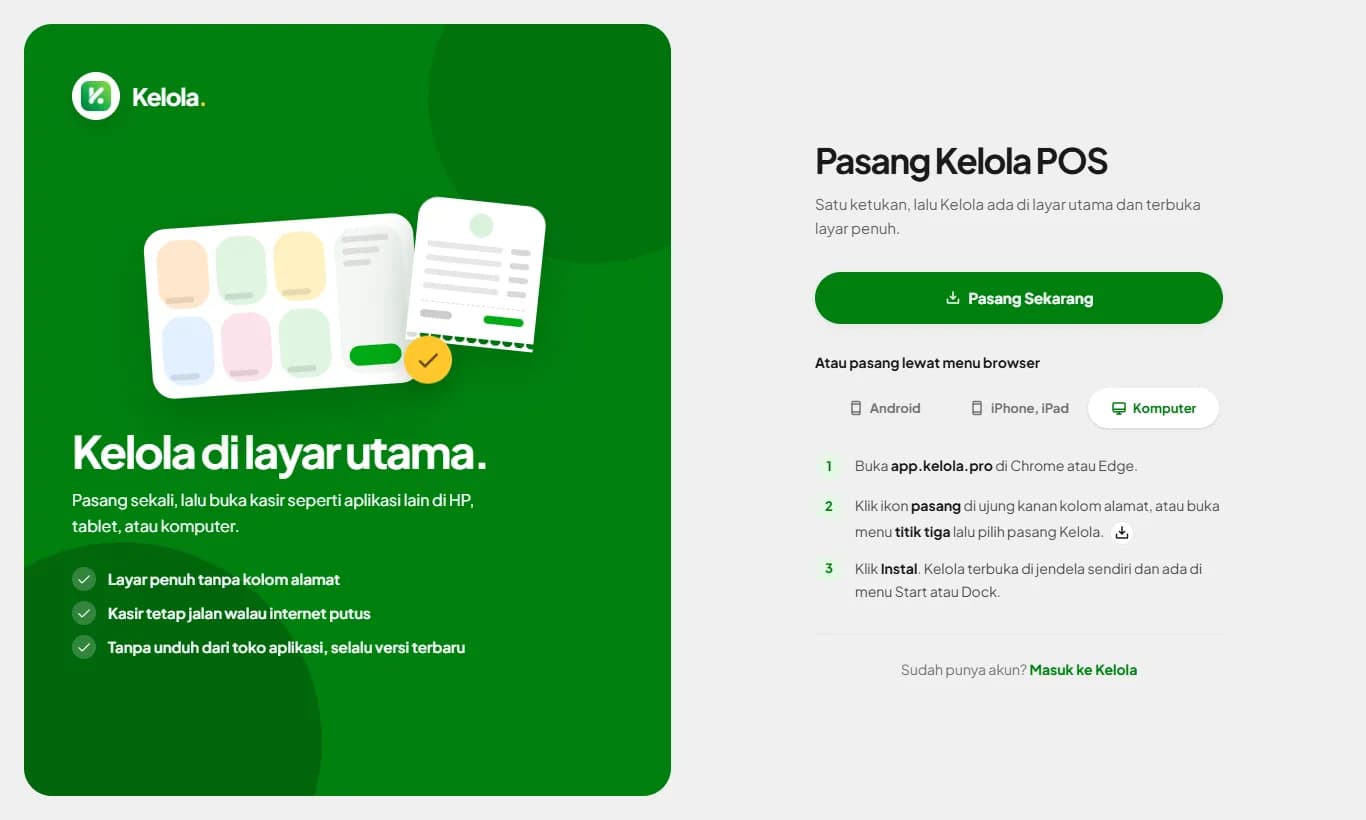
Install Kelola POS on phone, tablet, and computer
Kelola installs like a regular app without an app store: an icon on your home screen, full screen, and always the latest version.
Available on Starter, Growth, Enterprise
Install the AppSee the steps· 3 stepsSteps · 3
Step 1
One-tap install on Android and computers
Open app.kelola.pro/pasang in Chrome or Edge, then tap Install Now and Install. The same Install the App button sits on the sign-in page, the sign-up page, and Home, and disappears once Kelola is installed.
Step 2
Install on iPhone and iPad
Safari has no direct install button, so Kelola shows you how. Open app.kelola.pro in Safari, tap the Share button (the square with an up arrow), choose Add to Home Screen, then tap Add.
Step 3
Install from the browser menu
If the Install button doesn't appear, for example when Kelola is opened from Instagram or WhatsApp, open it in Chrome first. On Android tap the three-dot menu, then Install app or Add to Home screen. On a computer click the install icon at the right end of the address bar.
Kelola updates apply instantly to the installed app, with no reinstall.
Ready to try it in your store?
Sign up free and follow this guide right in the app.