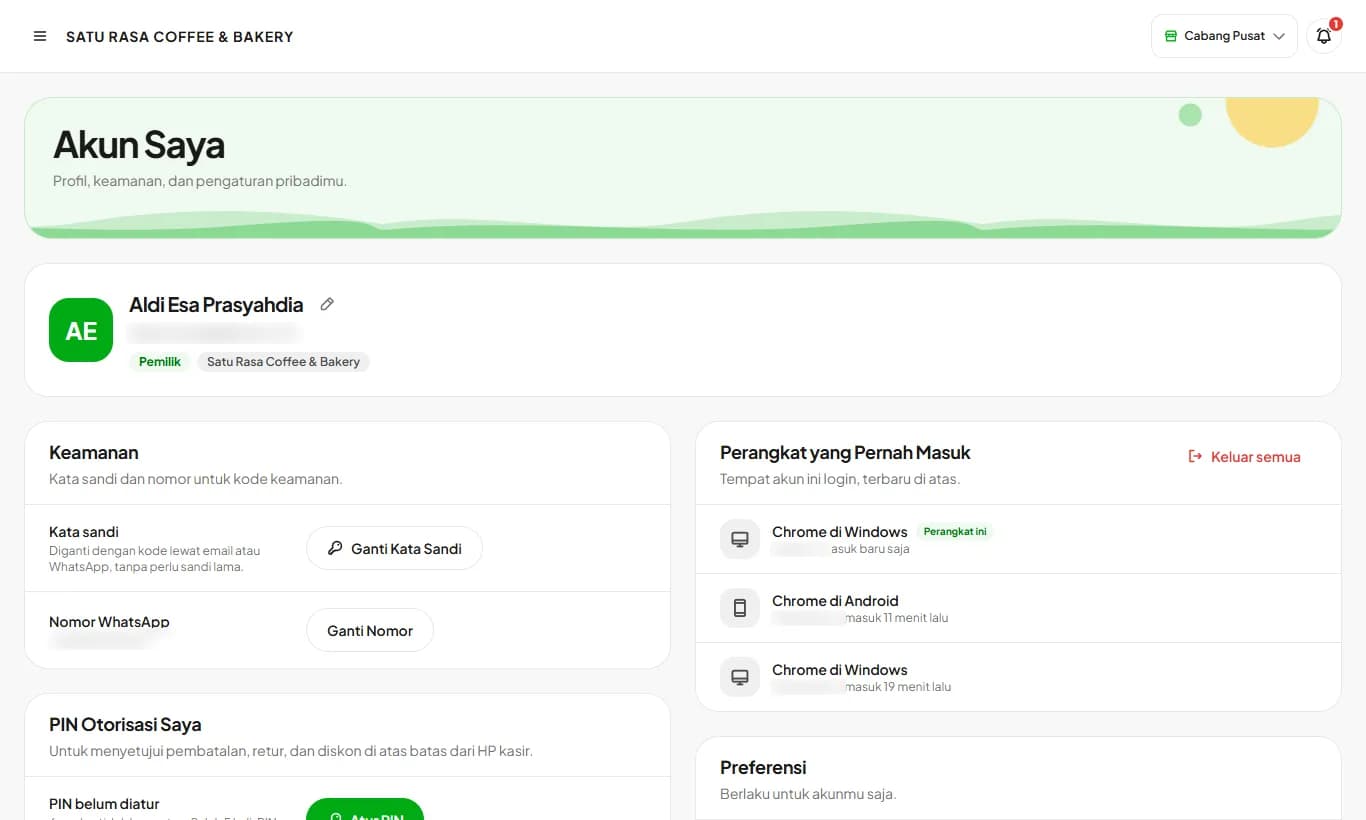
My Account
Profile, password change with a code, devices you signed in on, and theme.
Available on Starter, Growth, Enterprise
See the steps· 5 stepsSteps · 5
Step 1
Open My Account
Tap your name at the bottom of the menu. It shows your name, email, role, and store. Tap the pencil icon to change the name shown on receipts and reports.
Step 2
Change your password with a code
Tap Change Password, choose to get a code by email or WhatsApp, then enter the 6-digit code and your new password. You don't need the old one. Afterwards, other devices are signed out while this one stays signed in.
Step 3
Verify your WhatsApp number
To receive codes on WhatsApp, tap Verify Number, enter your number, then type the code sent to that WhatsApp.
Step 4
Devices you signed in on
A list of phones, tablets, and computers where your account signed in, with browser, city, and time. If a phone is lost or staff changes, tap Sign out all so every device has to sign in again.
Step 5
Light or dark theme
Under Preferences, tap Light or Dark. The look changes right away without a save button and only applies to that device.
Ready to try it in your store?
Sign up free and follow this guide right in the app.