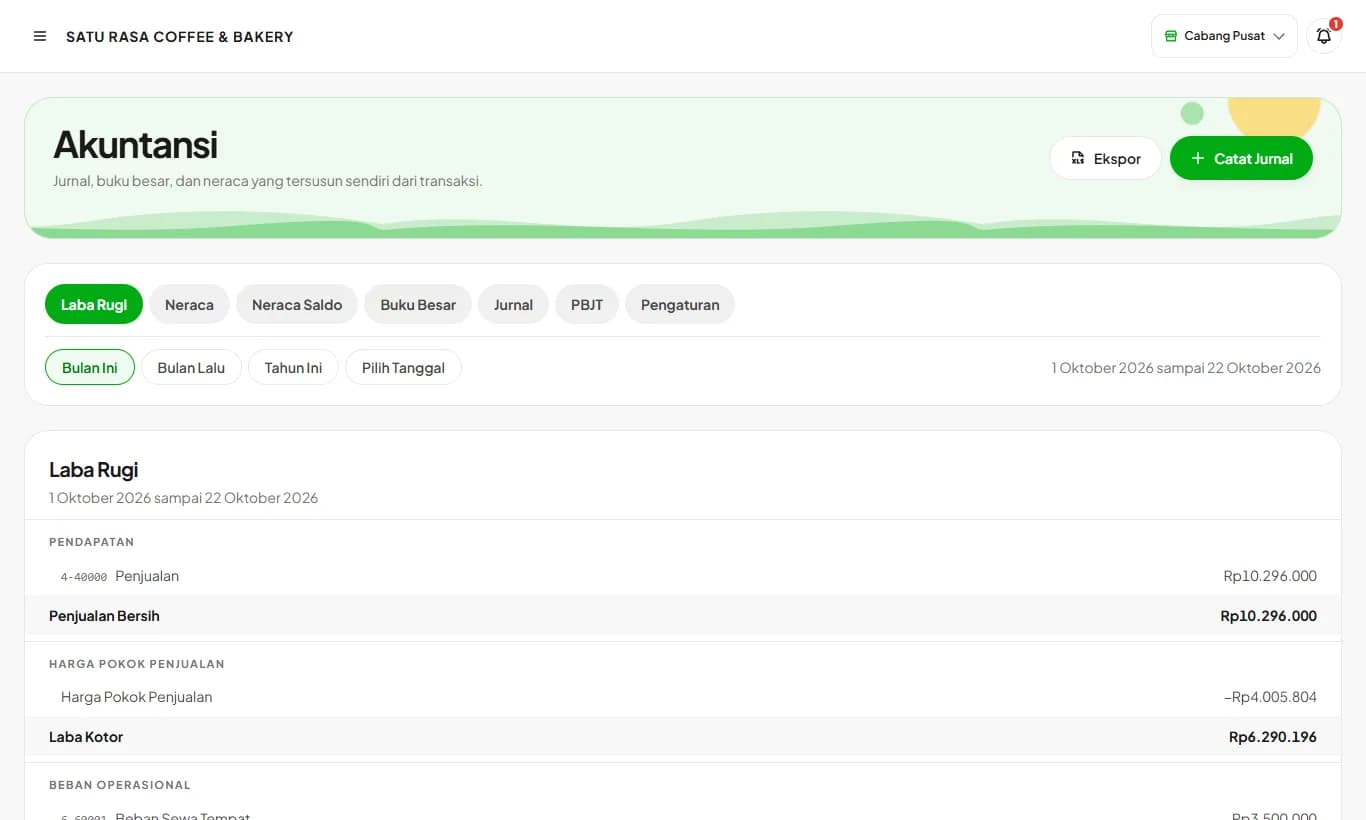
Accounting and balance sheet
Journals, ledger, balance sheet, and PBJT recap build themselves from your store's transactions.
Available on Enterprise
See the steps· 5 stepsSteps · 5
Step 1
Read the profit and loss and journals
Open Accounting in the Finance menu. The profit and loss, journals, ledger, and PBJT fill in right away from sales, expenses, and ingredient purchases, including past data.
Step 2
Enter opening balances once
In the Settings tab, choose a start date and enter your cash and bank balances. Press Fill from Kelola Data for inventory, supplier debt, deposits, tabs, and down payments. Opening capital is calculated for you. Machines and equipment go in Fixed Assets, and depreciation runs every month.
Step 3
View the balance sheet
The balance sheet shows assets, liabilities, and equity at the end of the period, marked Balanced. Press Compare inventory to match the inventory value with your stock in Ingredients.
Step 4
Record events outside the cashier
Press Record Journal and choose Owner Capital, Owner Withdrawal, Online Platform Payout, Tax Payment, Move Cash to Bank, or Share Service Charge. Just enter the date and amount, and the debits and credits are set for you.
Step 5
Export
Press Export to download reports as PDF or Excel, or journals in Jurnal.id and Accurate import format.
The PBJT recap follows the branch selected at the top right, since PBJT is filed per business location.
Ready to try it in your store?
Sign up free and follow this guide right in the app.