
Growth and up
Customer tabs
Regular customers buy now and pay later, with a tidy record of what they owe.
Available on Growth, Enterprise
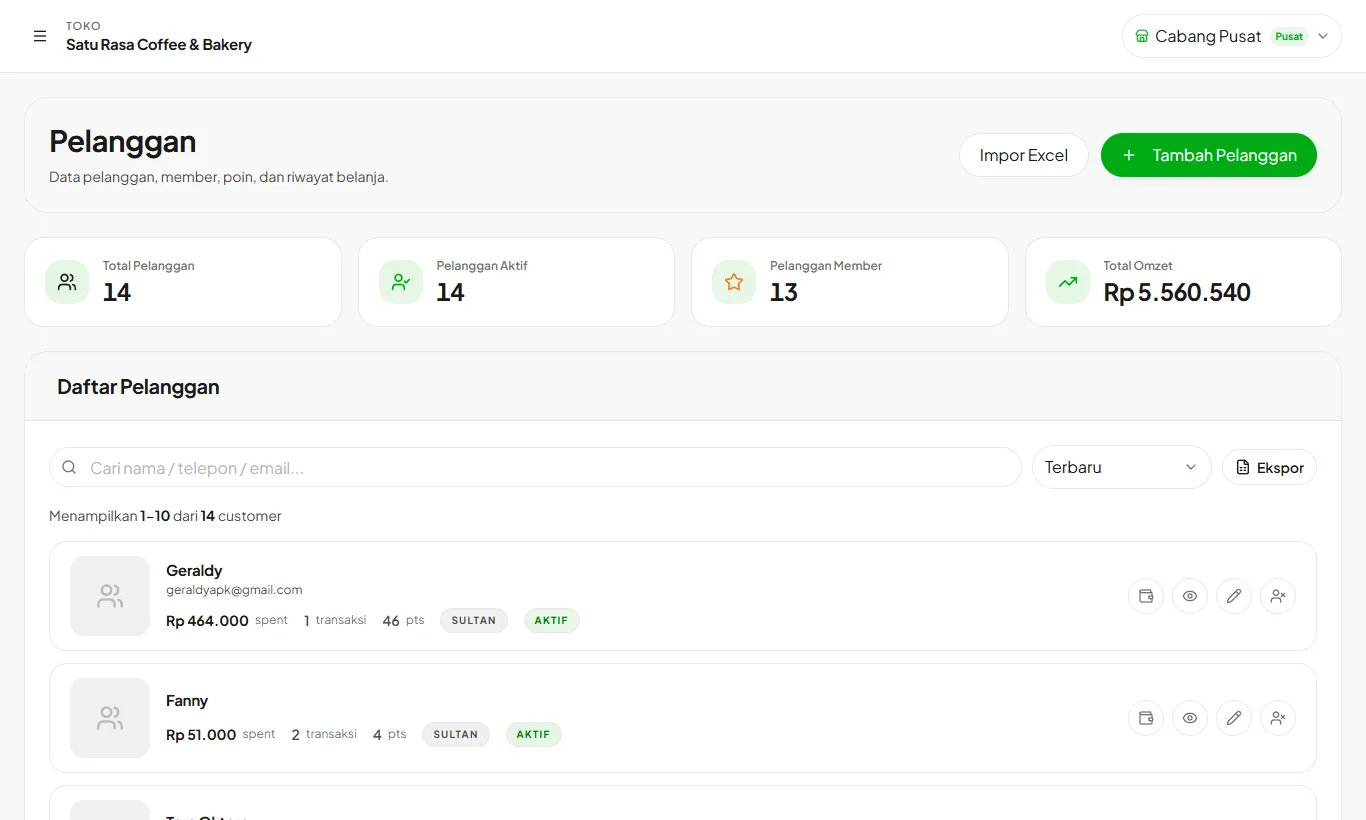
- 1
Turn on tabs
Open POS Settings and turn on Allow Tabs. It is off by default.
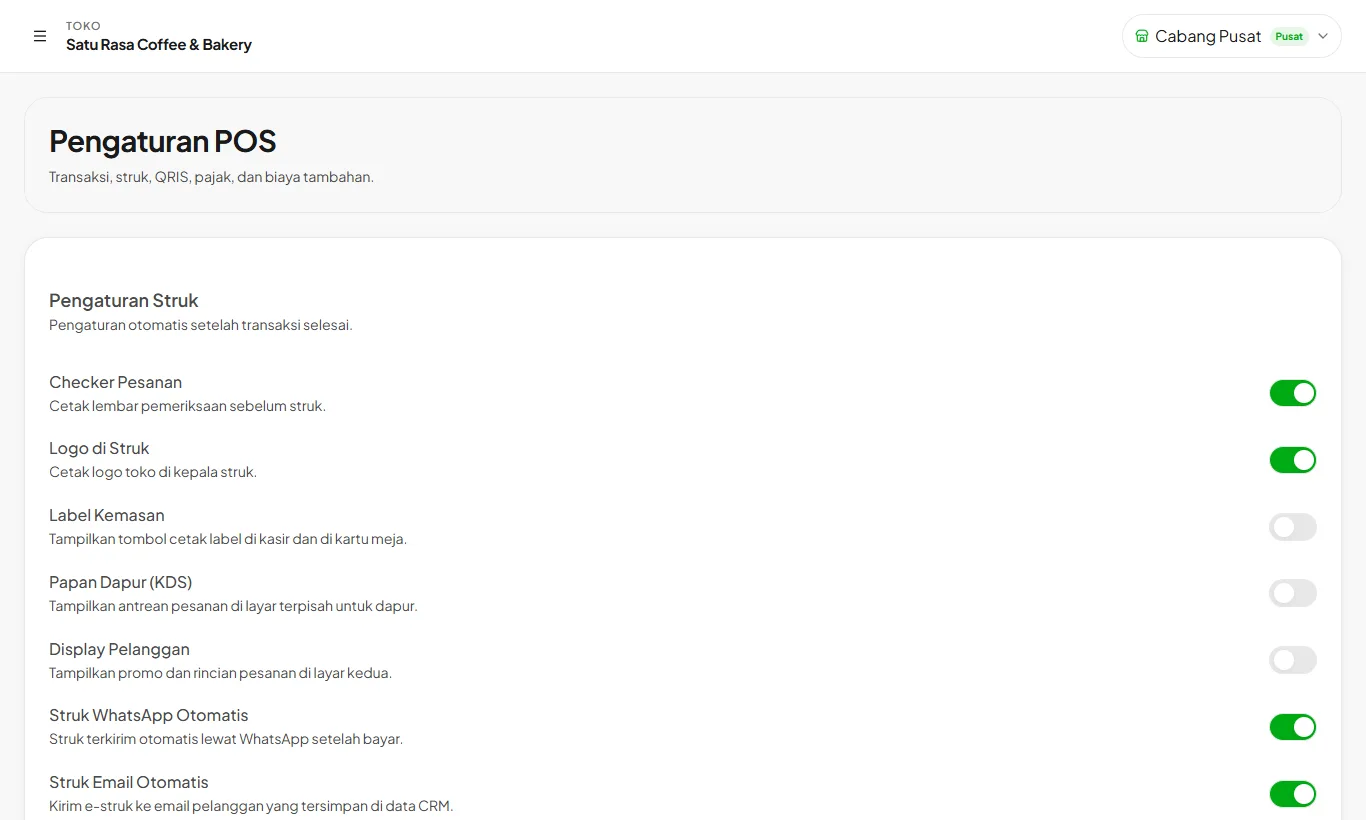
- 2
Pay with a tab
At the cashier, pick the customer first. The Tab method then appears, showing their total after this sale.
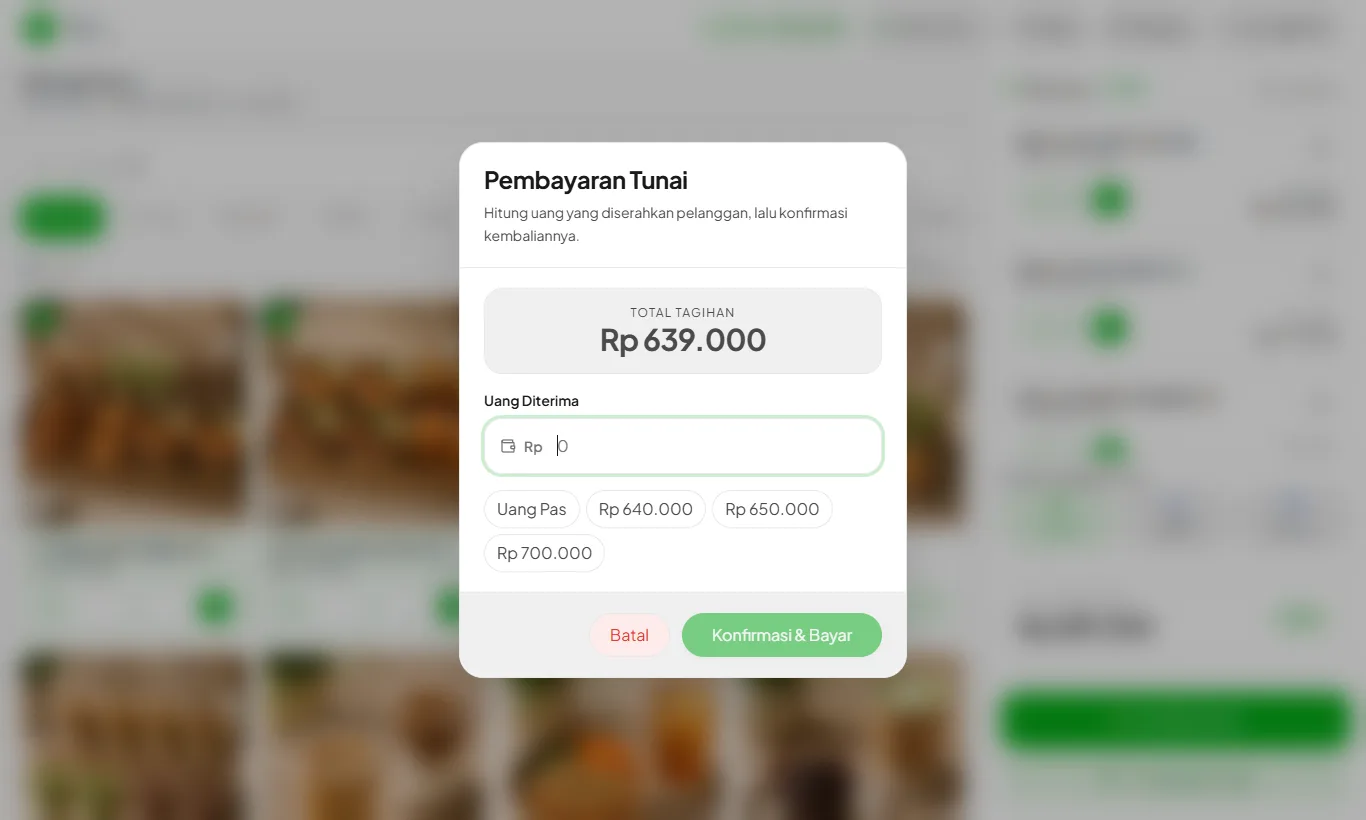
- 3
Receive payments
On the Customers page, press the payment button for a customer with a tab. Enter an amount or Pay all, choose cash, QRIS, card, or transfer, then save.
- 4
Track receivables
The Total Tabs card shows everything customers owe. Sort by Largest Tab to collect the biggest first, and open a customer for their history.
Tab sales count as revenue but not as cash in yet. Cash payments are included when the shift is closed.
Tabs need an internet connection, just like deposits.
Ready to try it in your store?
Sign up free and follow this guide right in the app.