
Online reservations by link
Guests book a table themselves through your short store link, and can pre-order food.
Available on Growth, Enterprise
- 1
Turn on online reservations
Open Settings then Reservations, switch on Accept online reservations, and set your link code. Choose Confirm first if staff should check each booking, or Accept instantly.
- 2
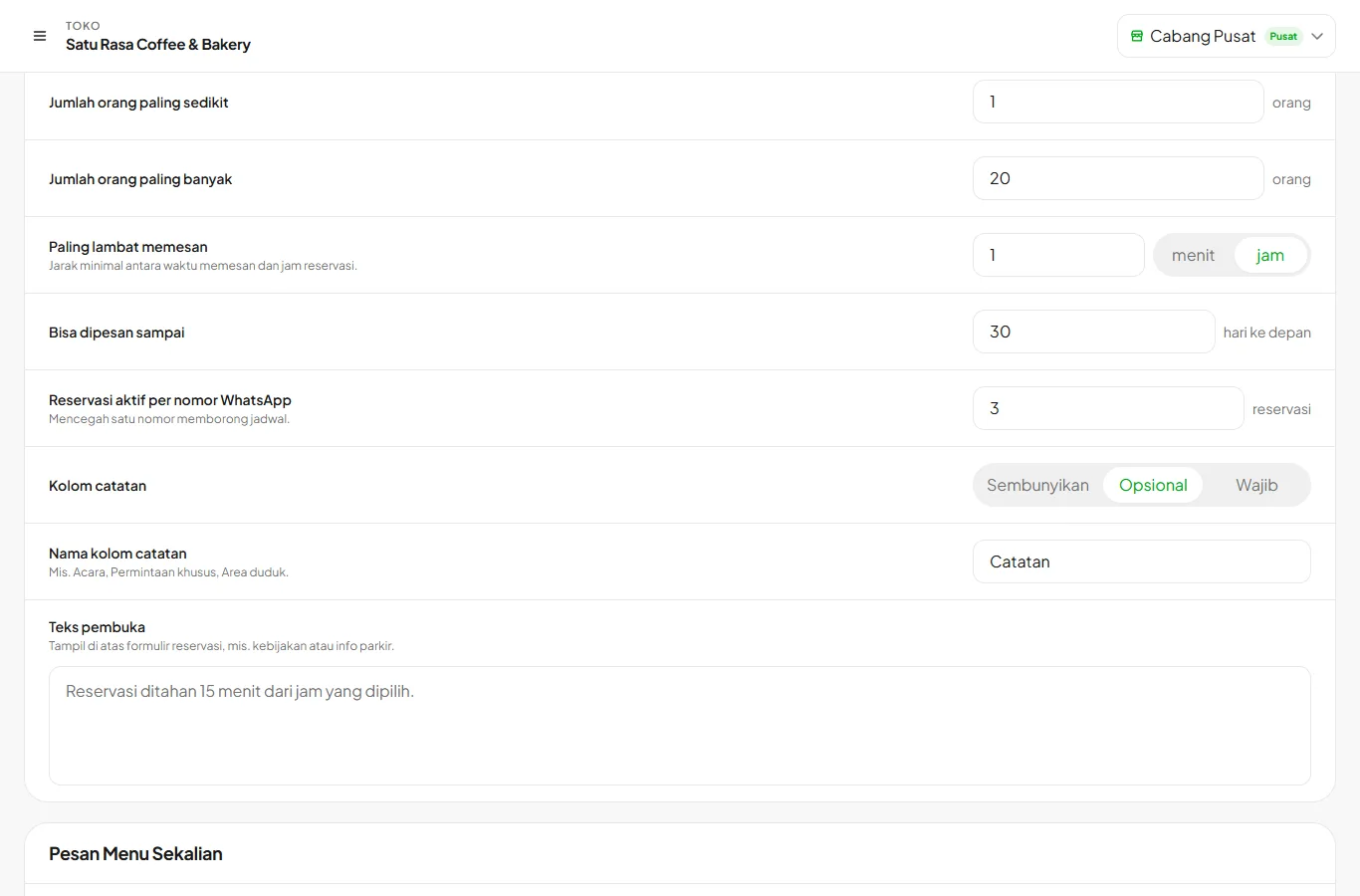
Set schedule and capacity
Set daily booking hours, time slot spacing, daily quota, limits per time slot, closed dates, and party size limits. Every limit can be left empty. Multi-branch stores can set each branch on its own.
- 3
Share the link
Copy a link like kelola.pro/r/saturasa from the Reservations page and put it in your Instagram bio or broadcast. Its QR code can also be downloaded from Reservation Settings.
- 4
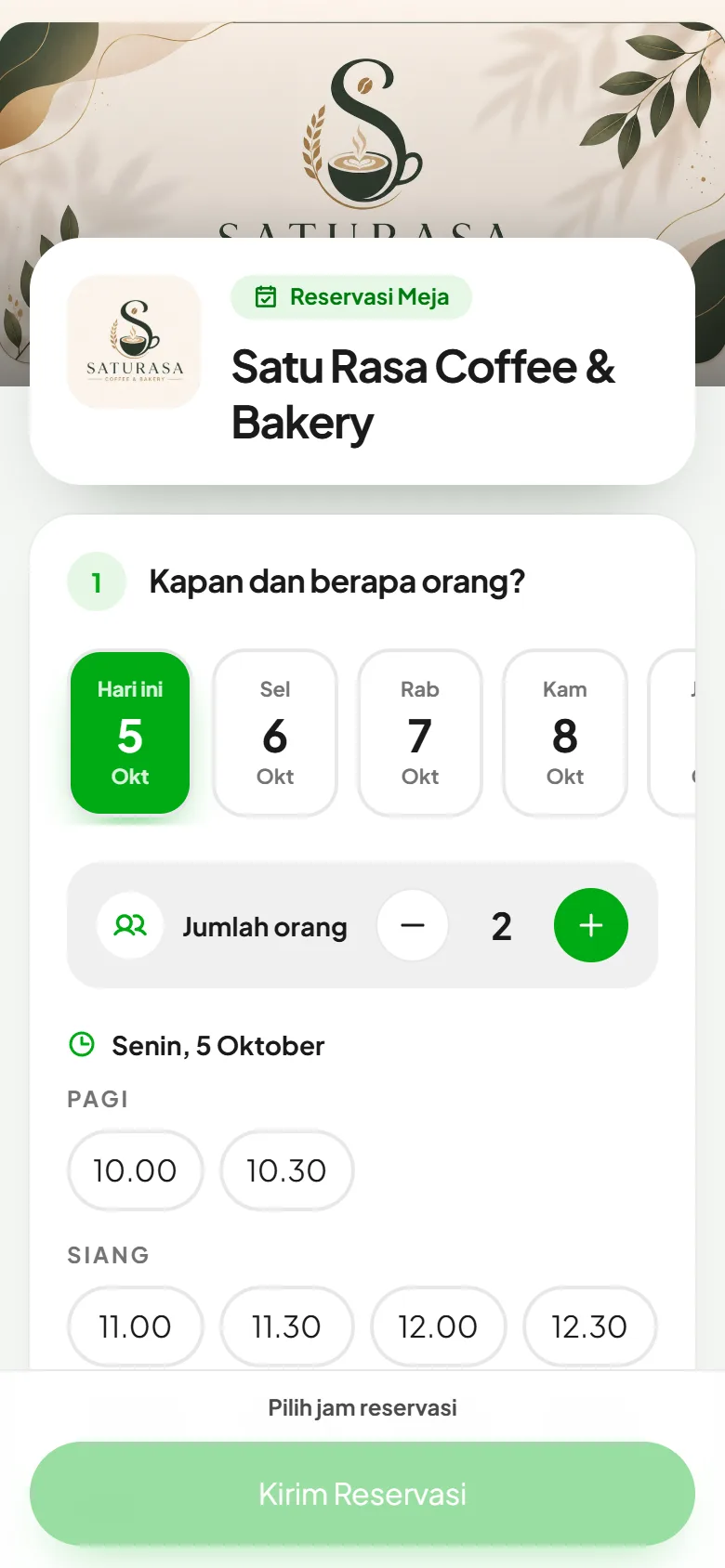
Guests book
Guests pick the date, time, and party size, then enter their name and WhatsApp number. Full time slots can't be picked.
- 5
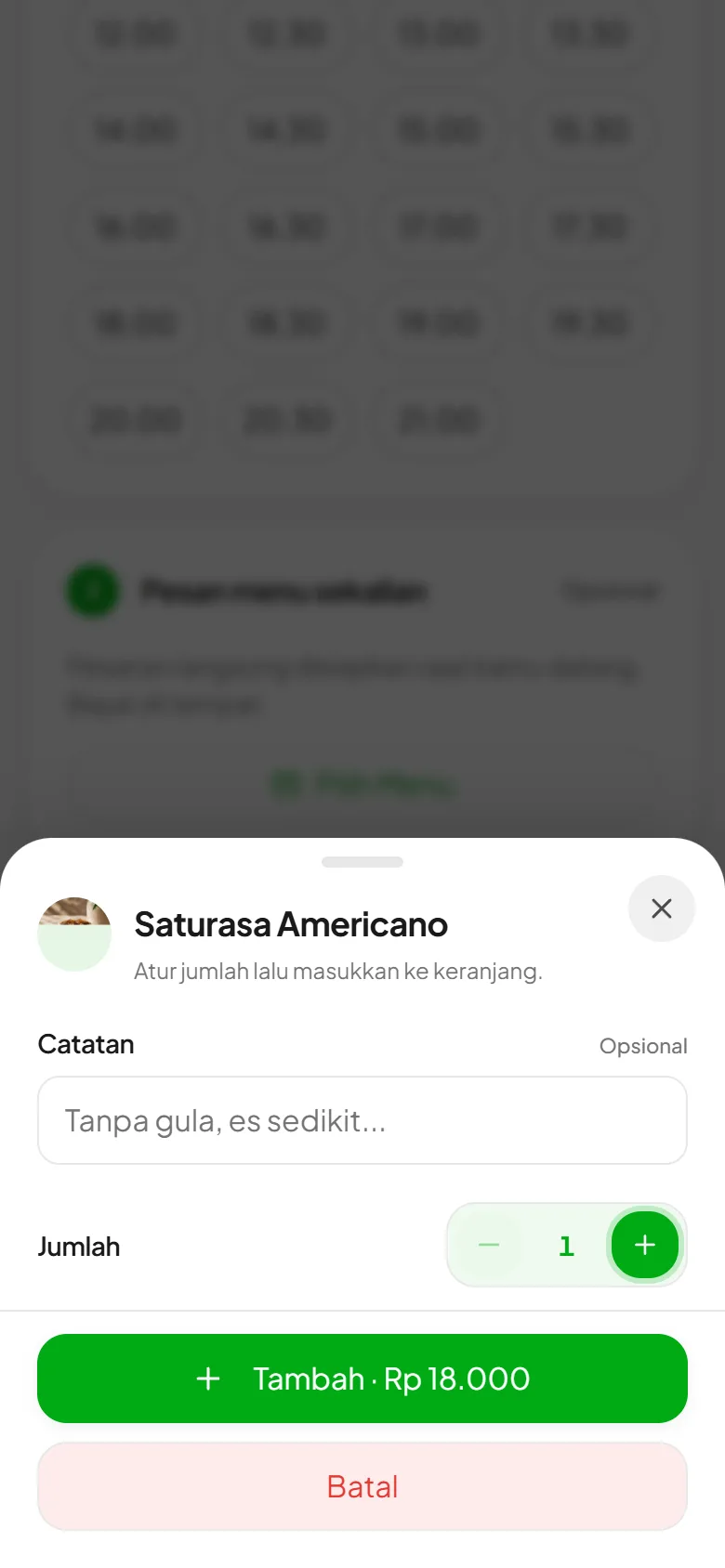
Pre-order food
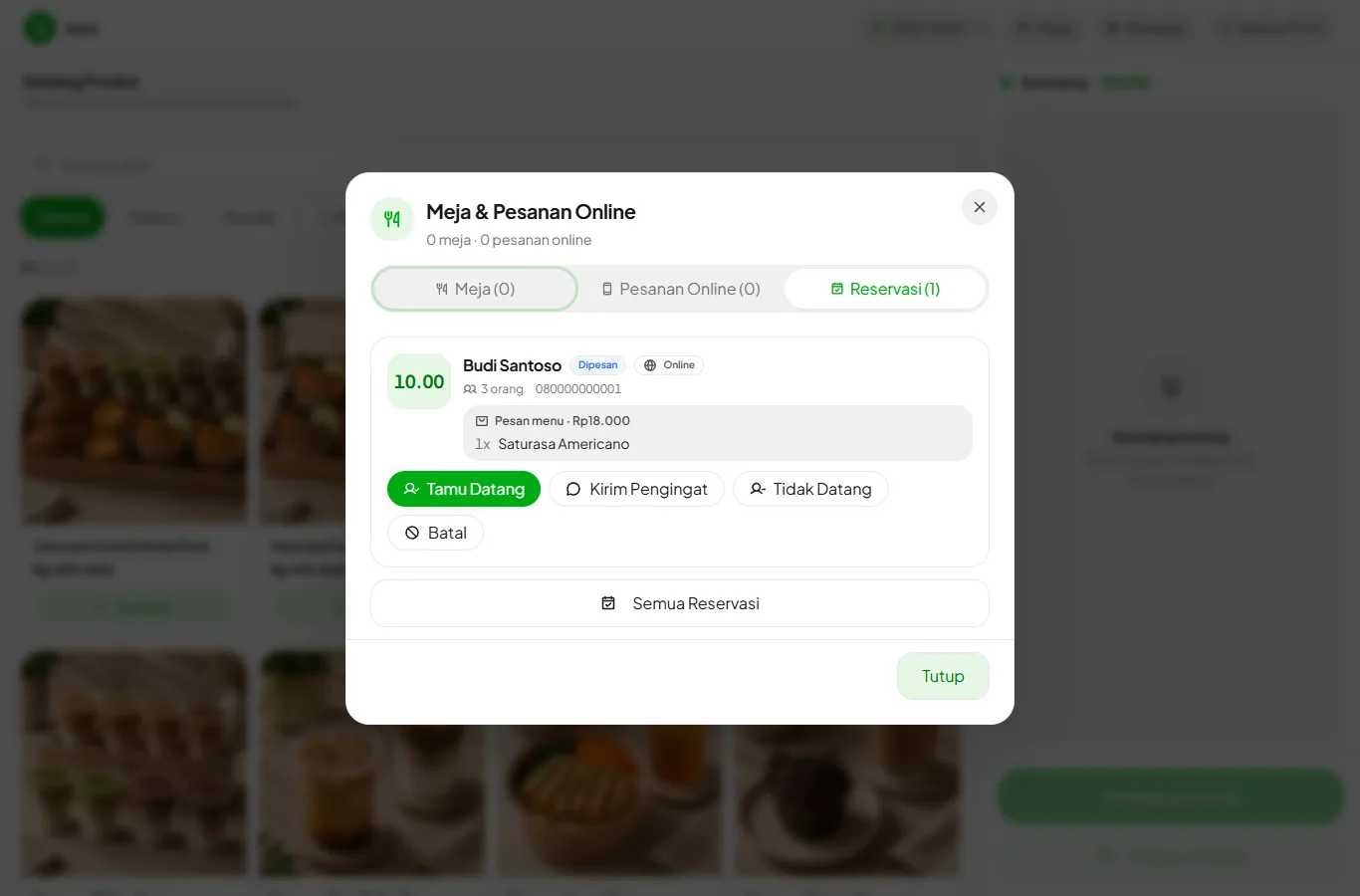
When Pre-order Food is on, guests can pick menu items while booking. They pay at the store, and when Guest Arrived is pressed the items go straight into the cashier cart.
- 6
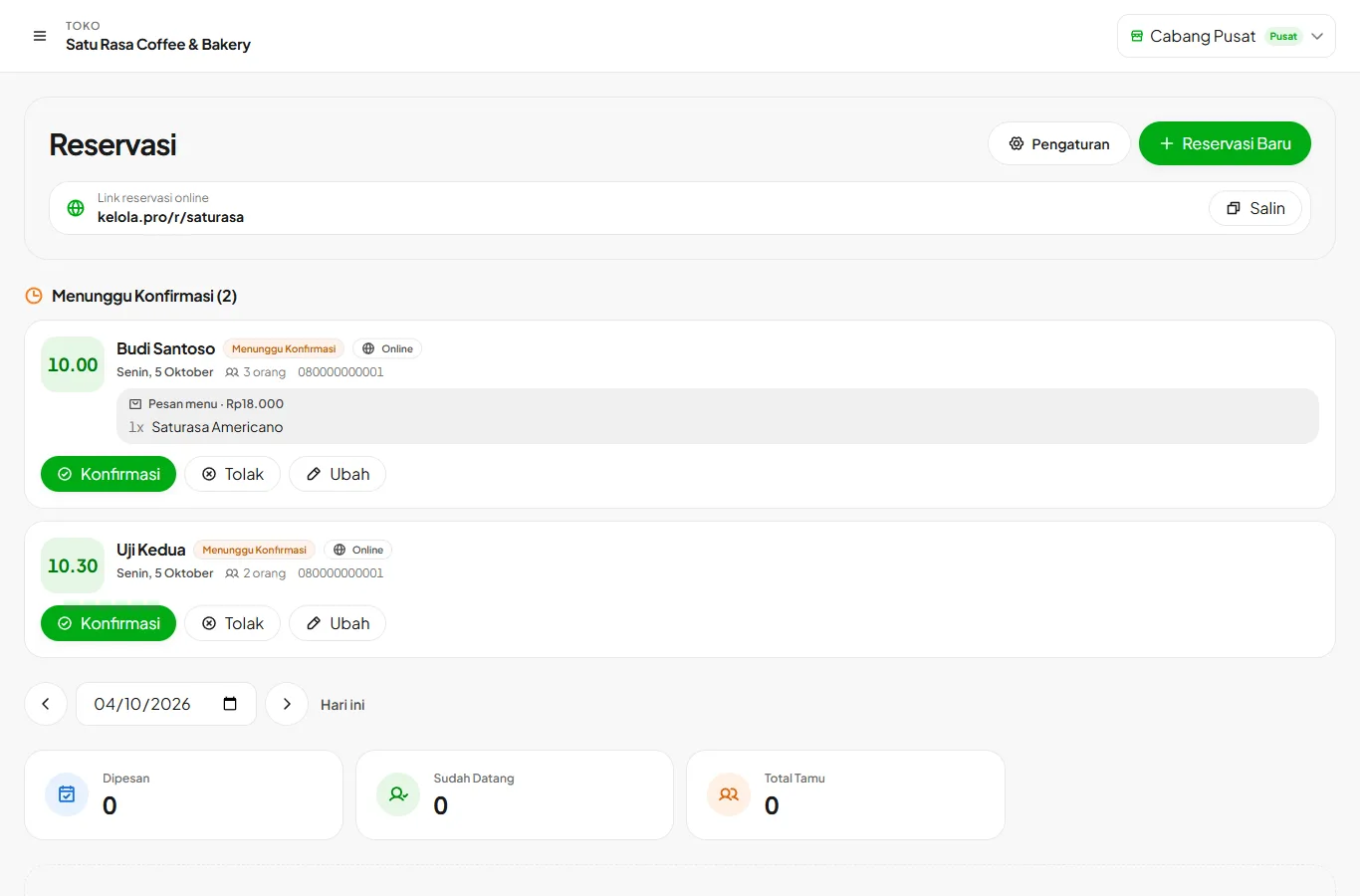
Confirm or decline
New bookings appear under Awaiting Confirmation on the Reservations page and in the Reservations tab at the cashier. Press Confirm or Decline, and the guest is notified on WhatsApp.
WhatsApp messages for received, confirmed, declined, and reminder can be edited in Reservation Settings. Reminders can go out the day before, on the day, or both.
A Book a Table button can also be shown on your QR Menu.