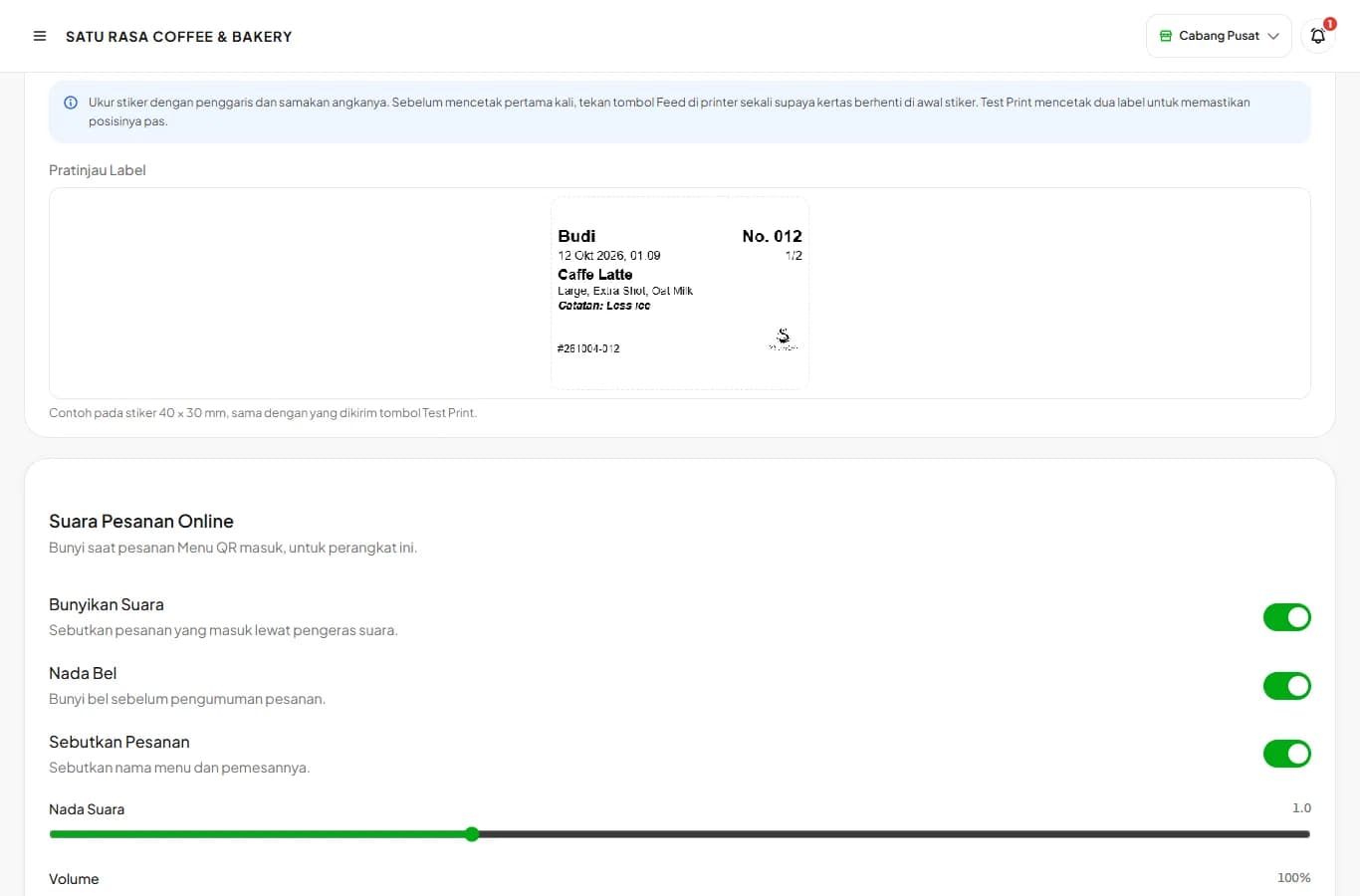
Packaging labels
Stickers for cups and packaging with the order name, options, and notes, printed automatically with every sale.
Available on Starter, Growth, Enterprise
See the steps· 4 stepsSteps · 4
Step 1
Turn on packaging labels
Open Settings then Printer & Print. Under Packaging Labels, turn on Print packaging labels. Cashiers can change it too.
Step 2
Connect the label printer
Connect the label printer by Bluetooth, USB, or LAN cable in the same section. It's separate from the receipt printer, so labels never come out on receipt paper.
Video
Cara Menghubungkan Printer Struk ke Kelola POS (Bluetooth, USB, LAN)
Step 3
Match your sticker size
Pick your sticker size, such as 40 x 30 mm which is the most common for cups, or press Custom and type the width, height, and gap between labels. The text resizes itself to fit.
Step 4
Check the position with Test Print
Press the printer's Feed button once so the paper stops at the start of a sticker, then press Test Print. Two labels print; if the second one drifts, recheck the height and gap, or choose Printer sensor.
Labels print automatically with every sale and when an order is saved to a table. They can be reprinted from History at the cashier.
Use Shift right if the text sits too close to the left edge of the sticker.
Ready to try it in your store?
Sign up free and follow this guide right in the app.