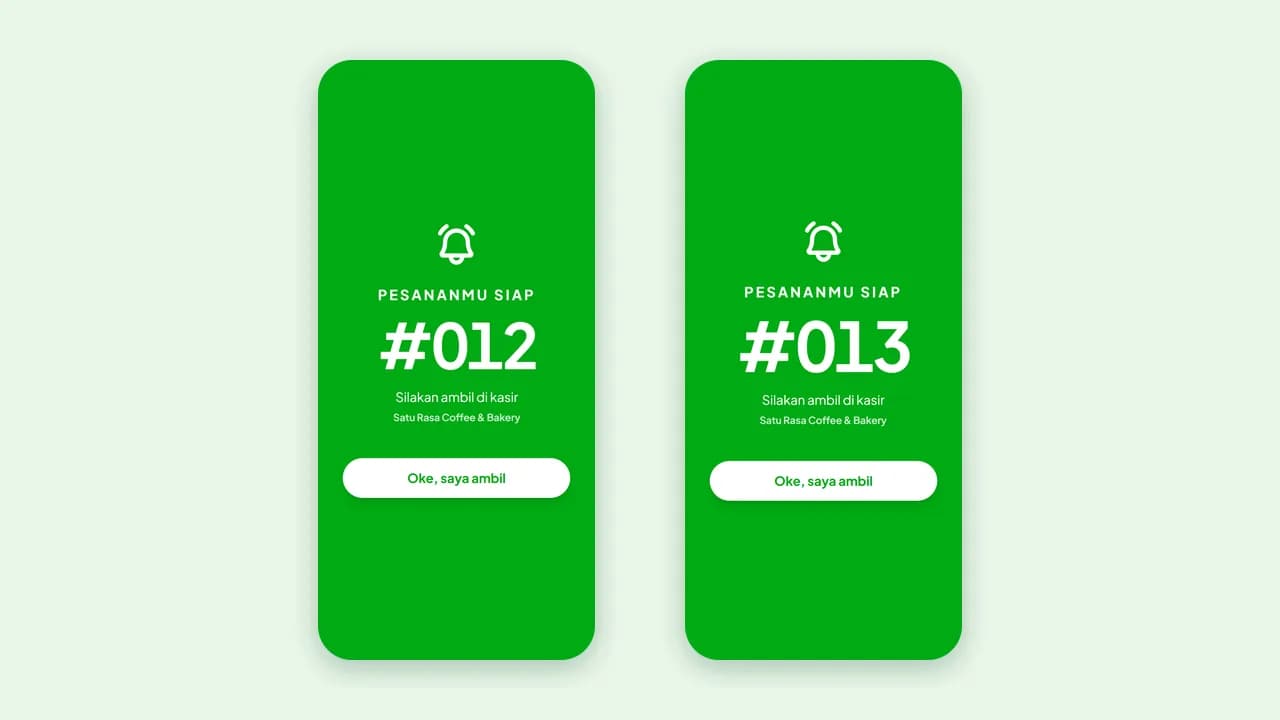
Calling ready orders
The buyer's phone rings and vibrates as soon as the order is ready: through the QR Menu order page, a pager from the receipt QR, and WhatsApp. No pager hardware needed.
Available on Growth, Enterprise
See the steps· 4 stepsSteps · 4
Step 1
Turn it on in Customer & Kitchen Screens
Open Settings then Customer & Kitchen Screens. In Call Ready Orders, turn on Call ready orders. Turn on Receipt pager to print a small QR on cashier receipts, and WhatsApp to buyers if your store WhatsApp is connected. Table orders are served is on by default, so table orders are not called.
Step 2
Buyers follow along on their phone
QR Menu buyers just keep their order page open. Cashier buyers scan the small QR at the bottom of the receipt and press Turn on reminder sound. Customers picked from the customer list with a WhatsApp number are also notified on WhatsApp.
Step 3
Call when the order is ready
At the cashier, open History and press Call on the ready order. Stores with a kitchen display just press Done; the order is called right away.
Step 4
The buyer's phone rings
The buyer's phone shows the order number large, rings, and vibrates until they press OK, picking it up. Calling again rings it again. The customer screen at the cashier stays for promos and transactions.
Each receipt carries one small QR: with the pager on, it replaces the QR Menu or booking code so the receipt stays tidy.
The status on the buyer's phone arrives instantly without reloading, and keeps working on slow mobile networks.
Ready to try it in your store?
Sign up free and follow this guide right in the app.