Orders with a deposit
Record cake, rice cone, or catering orders for later pickup, take a deposit, and charge the rest at pickup.
Available on Growth, Enterprise
See the steps· 5 stepsSteps · 5
Step 1
Set the order deposit
Open Settings then Reservations, Order deposit section. Choose Off, Optional, or Required, then set the minimum deposit as a percent of the order total.
Step 2
Save as an Order
At the cashier, add the ordered items to the cart, then press Save Order. Fill in the customer name, WhatsApp number, pickup date and time, and a note such as the cake writing.
Step 3
Receive the deposit
Once saved, the Receive Deposit window opens with the minimum amount filled in. Choose the payment method: cash, QRIS, transfer, or card.
Step 4
Track it and charge at pickup
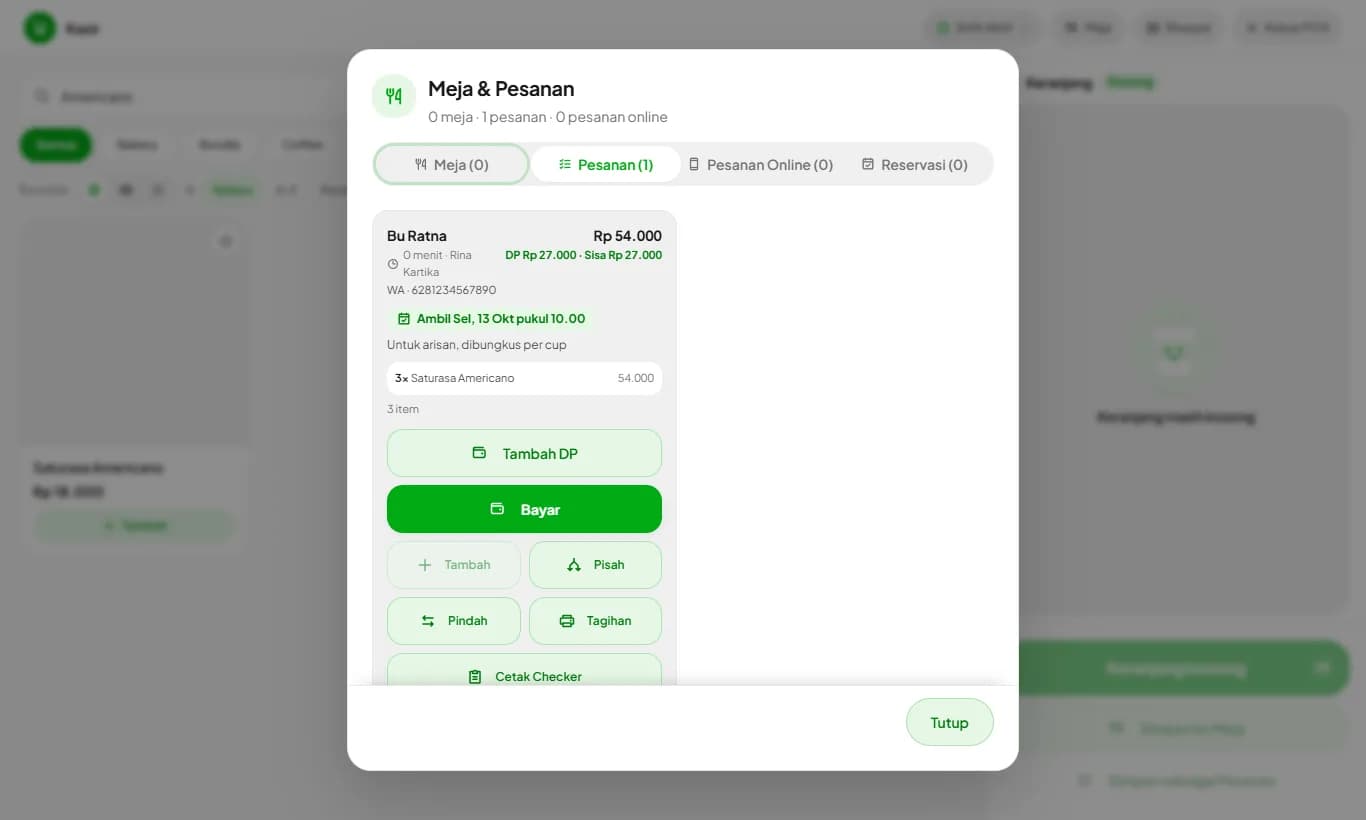
Open the Tables button at the cashier, Orders tab. Each order shows the pickup time, note, deposit received, and the balance. When the customer arrives, press Pay and only the balance is charged.
Step 5
Updates on the customer's WhatsApp
When the store WhatsApp is connected and the order has a customer number, the customer gets a deposit receipt as soon as it is recorded, then a reminder the day before pickup with the order items and the deposit received.
Orders don't go to the kitchen screen when saved, so the kitchen won't make them early. Print a Checker when you want to start preparing.
Orders past their pickup time are marked red. An order with a deposit can't be cancelled until the deposit is refunded or forfeited.
Ready to try it in your store?
Sign up free and follow this guide right in the app.