Order Channels (GoFood, GrabFood)
Separate prices for delivery app orders, without changing your in-store prices.
Available on Starter, Growth, Enterprise
See the steps· 6 stepsSteps · 6
Step 1
Add a channel
Open Settings, Cashier & Devices, then Order Channels. Pick the platform, for example GoFood, or Other channel for one that is not listed.
Step 2
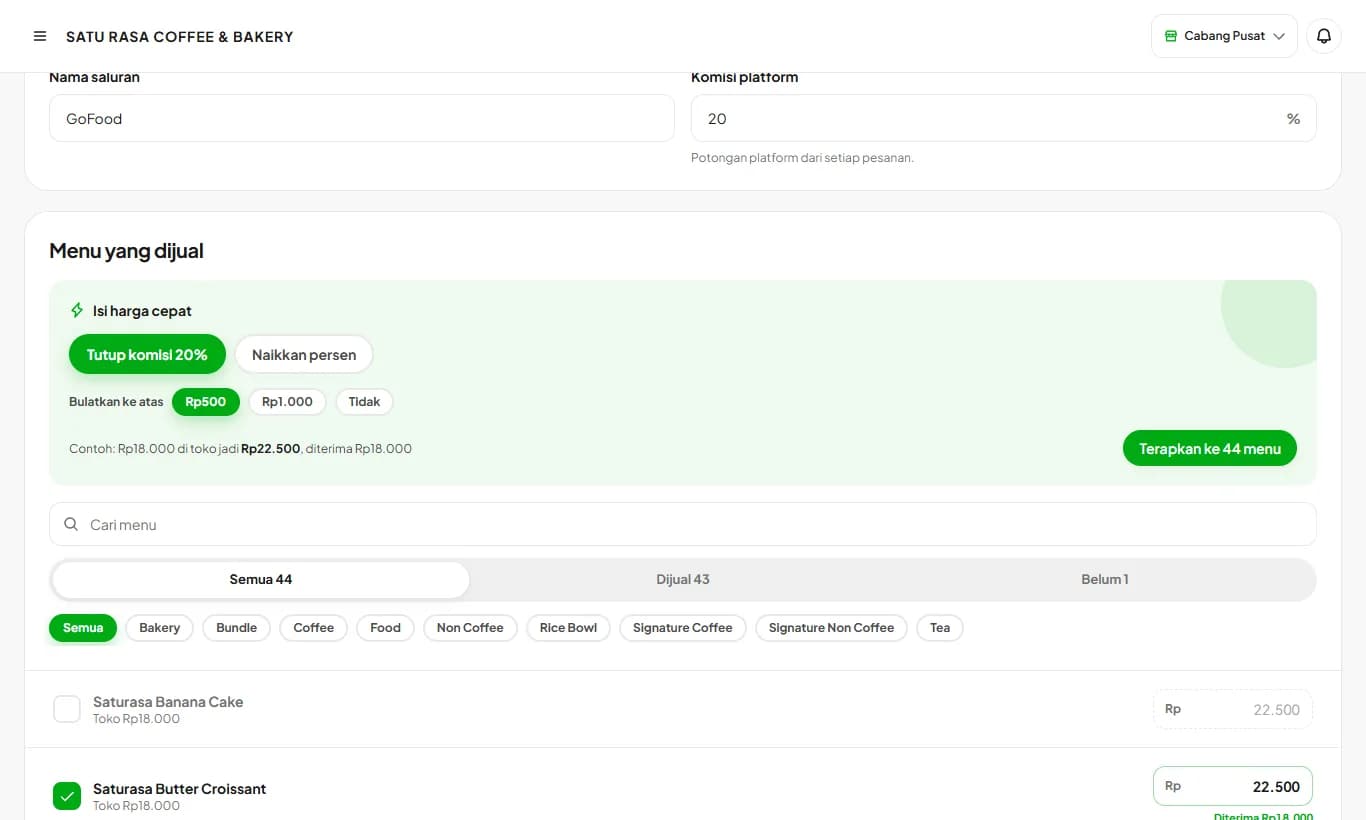
Set the commission and quick prices
Enter the platform commission, for example 20%. Under Quick prices, choose Cover commission so what you receive matches the store price, or Raise by percent. Press Apply to fill every item at once.
Step 3
Tick the items you sell
Untick items you don't sell on that platform and adjust any price one by one. Under each price you see what you receive after commission. Press Save Channel.
Step 4
Pick the order source at checkout
When adding the first item, choose In store or GoFood. Prices follow that choice, and items not sold on GoFood are hidden.
Step 5
Change the order source
Picked the wrong one? Press Change in the cart. Cart prices are recalculated, and items not sold on the new channel are shown before they are removed.
Step 6
See it in History and exports
Platform orders are color-tagged in Transaction History. PDF and Excel exports record each order's source, and a price list for every channel can be downloaded as a PDF from the Order Channels page.
Channel orders are paid by the platform, so they don't go into the cash drawer.
Switch a channel off when you are not taking orders from that platform. Its prices stay saved.
Ready to try it in your store?
Sign up free and follow this guide right in the app.